> ## Documentation Index
> Fetch the complete documentation index at: https://docs.polydata.co/llms.txt
> Use this file to discover all available pages before exploring further.
# Generating an API Key
> Step-by-step guide to create your Polydata API key
Polydata requires API keys critical functionality, such as accessing data from a Hub you're subscribed to, or uploading data to a Hub you're a member of.
This page provides a step-by-step overview on how you can generate an API key.
## Step 1: Navigate to Settings
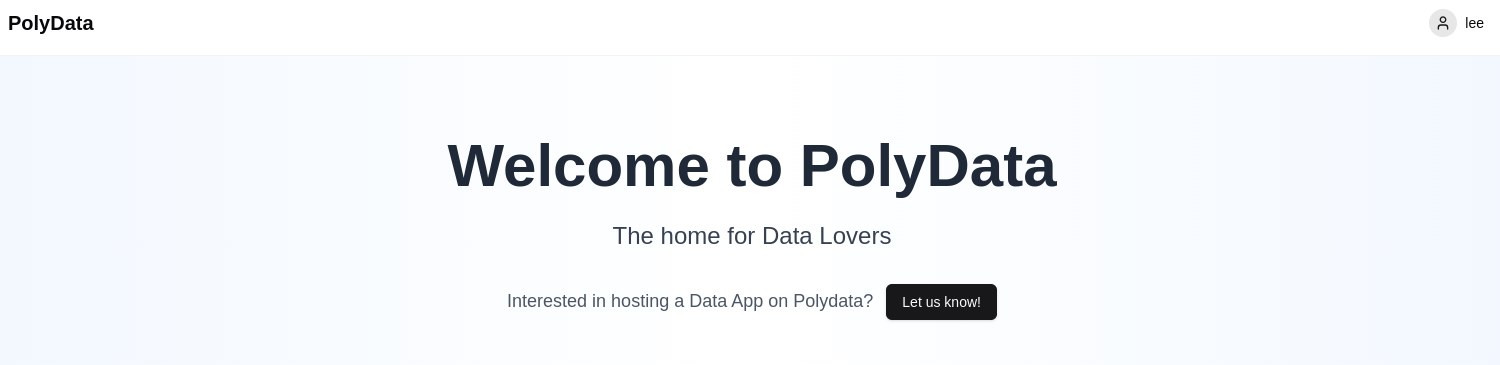
After logging in to Polydata, click on the settings icon in the top right corner to access your account settings.
 ## Step 2: Go to the API Keys Section
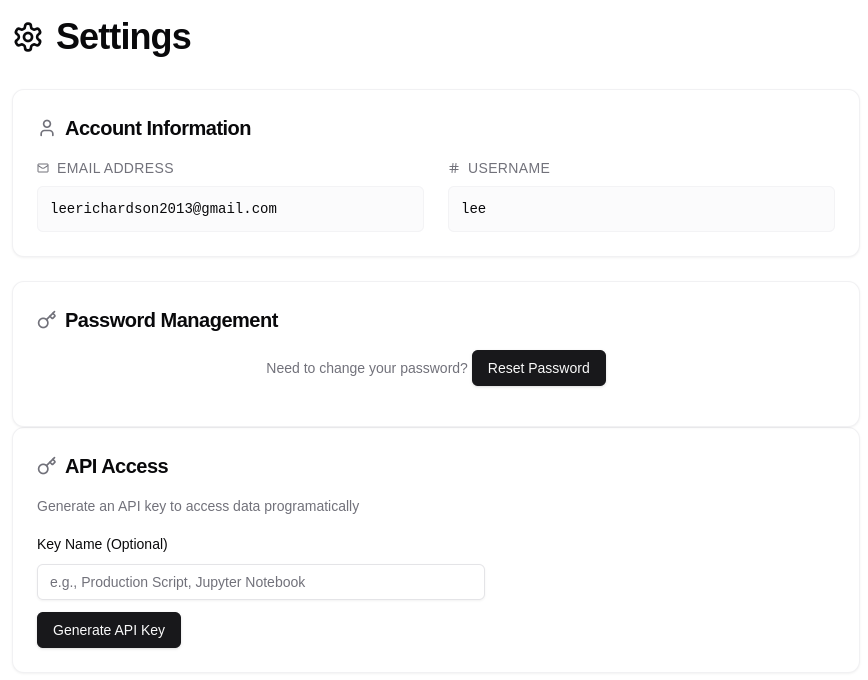
In the account settings page, you should see an "API Keys" section at the bottom.
## Step 2: Go to the API Keys Section
In the account settings page, you should see an "API Keys" section at the bottom.
 ## Step 3: Copy your API Key
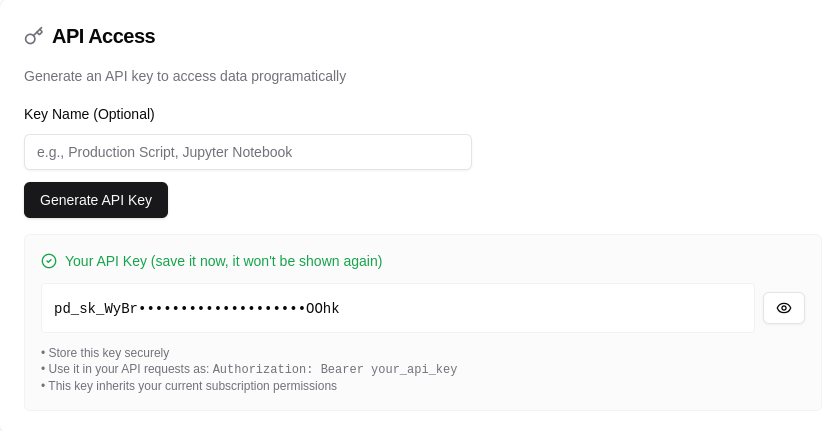
Type in your API key name, and then hit Generate API Key. Click the show button, and copy the API key to save somewhere.
## Step 3: Copy your API Key
Type in your API key name, and then hit Generate API Key. Click the show button, and copy the API key to save somewhere.
 Keep your API key secure! Never share it publicly or commit it to version
control.
Your API key will look something like this:
```
pd_sk_n9G-99bd8KglTZ_1POPHEztPNzXxQSF4OH5BByYkt21
```
## Testing your API Key
You'll need to use your API key in the authorization header of every request:
```bash theme={null}
curl -H "Authorization: Bearer YOUR_API_KEY" \
"https://api.polydata.co/v1/auth/test-auth"
```
For example, you can test your above API key with:
```bash theme={null}
curl -H "Authorization: Bearer pd_sk_n9G-99bd8KglTZ_1POPHEztPNzXxQSF4OH5BByYkt21" \
"https://api.polydata.co/v1/auth/test-auth"
```
## Next Steps
Now that you have an API key, learn how to fetch data from Polydata
Keep your API key secure! Never share it publicly or commit it to version
control.
Your API key will look something like this:
```
pd_sk_n9G-99bd8KglTZ_1POPHEztPNzXxQSF4OH5BByYkt21
```
## Testing your API Key
You'll need to use your API key in the authorization header of every request:
```bash theme={null}
curl -H "Authorization: Bearer YOUR_API_KEY" \
"https://api.polydata.co/v1/auth/test-auth"
```
For example, you can test your above API key with:
```bash theme={null}
curl -H "Authorization: Bearer pd_sk_n9G-99bd8KglTZ_1POPHEztPNzXxQSF4OH5BByYkt21" \
"https://api.polydata.co/v1/auth/test-auth"
```
## Next Steps
Now that you have an API key, learn how to fetch data from Polydata